Record List
Record List
The name of the table is displayed in the top left corner. The data records listed are according to the selection /search criteria or random. The display of each column and the number of lines per screen can be customized.
General
Display of a table is divided into:
- Table Name
- Menue
- Toolbar
- Search Fields
- Column Headings
- Records
- Footer
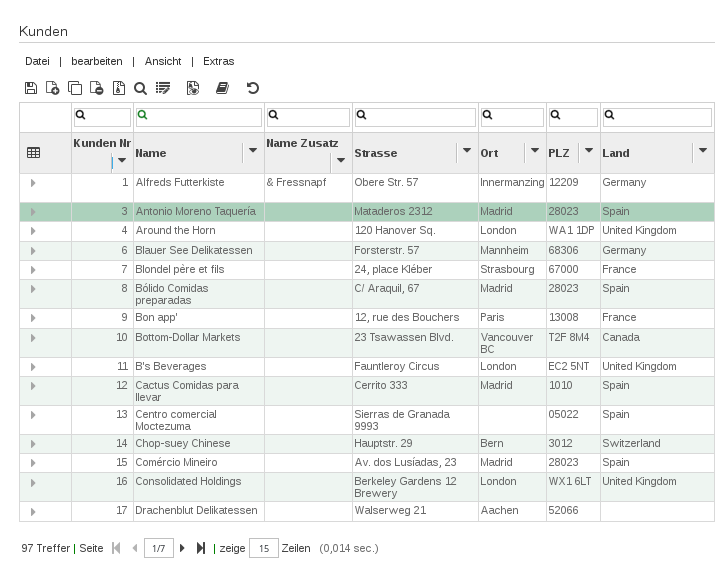
Fig.1: Record List
Menu Bar
The Menu Bar contains all available commands to edit a table.
Tool Bar
The Tool Bar contains icons for several important commands. Hover the mouse over an icon and the text information for this command will be displayed.
Table Search fields
One or more fields can be used for a search. The search term and the search criteria can be edited directly in the search fields. You can determine if all search criteria have to be fulfilled (by default, Boolean operator AND) or just one of them (Boolean operator OR). The Boolean operator is controlled with the setting Global “and/or” (Edit -> Search). The start the search press ‘Enter’.
Additional functions, which are only available when activated for a table field, by the ADMIN. Select search - click on the arrow in the search field, a drop down list of field contents will be shown. Select the field content you are looking for. Fast search - enter 2 or more digits and a drop down list of field contents containing this string will be shown. Click on the result you are looking for and it will appear in your search field. Use Shift and Click to open the corresponding data record.
Available search criteria
| Greater than or equal to | >= | Only numbers and dates |
|---|---|---|
| Does not equal | <= | Only numbers and dates |
| ungleich | != | Only numbers |
| Blanks | #NULL# | NULL all capital letters |
| Not Blanks | #NOTNULL# | NOTNULL all capital letters |
Possible formats for date:
| Date and time | 01.05.2011 10:25 | tt.mm.jjjj hh:mm |
|---|---|---|
| Date | 01.05.2011 | tt.mm.jjjj |
| Date | 01 may 2011 | tt monat jjjj (month – no capital letter, with or without space possible) |
| Year | 2011 | jjjj |
| Month of the year | 05 2011 | mm jjjj |
| Calender week | KW24 2011 | Kalenderwoche yyyy |
| Calender week | KW 24 | Kalenderwoche des aktuellen Jahres |
See also EDIT->SEARCH
Table Column Header
Change Column Width
Click next to the text in the column header. The mouse pointer changes to an arrow, which is delimited to the right with a vertical stroke. Keep left mouse button pressed and change the column width by moving the mouse left or right. To make this change permanent, press Enter or click the Save Icon.
Change Column order
Click in the text in the column header. The mouse pointer changes to an arrow, which is delimited to the right with a vertical stroke. Keep left mouse button pressed and move the mouse to where you want to move the column. Move the mouse to the right. The green arrow shows that the column will be placed after the one indicated with the green arrow. Move the mouse to the left. A green arrow appears that shows that the column will be placed before the one indicated with the green arrow. To make this change permanent, press Enter or click the Save Icon.
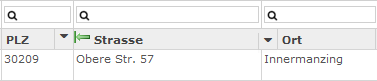
Fig.2: Column country is inserted before column street
Hide column
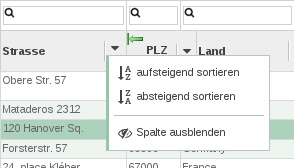
Fig.3: Record View – Hide column country
Unhide Column in Menu ->BEARBEITEN / AUSWAHL ZURÜCKSETZEN.
Sort
Click the arrow in the header and choose ascending or descending.
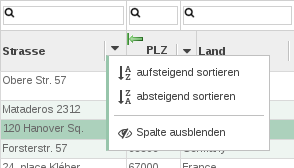
Fig.4: Sort Record List table by country
The black arrow next to the header indicates that the list has been sorted by this column.
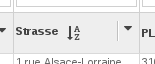
Green arrow pointing downwards - sorted in ascending order
Green arrow pointing upwards - sorted in descending order
To sort also by other columns, press SHIFT and repeat as above. To undo a sort with several columns re-click on a column and sort or go to. ->BEARBEITEN / AUSWAHL ZURÜCKSETZEN
Note: The sort order of the 1st column chosen remains a priority.
Example: Table contains orders of TYPE 'OFFER' and 'INVOICE'.
If you sort by TYPE in ascending order, the offers and then the invoices are displayed first.
If additionally sorted by value, all offers are displayed, sorted by value and then all invoices are also displayed sorted by value.
Display linked data records
To display also the linked data records, click on the ‘Group Selection’ icon (header line). Further details see Display Links in Record List.
Table Data records
Displayed data records can be edited, deleted and sorted. The view can be personalized. Check the Edit Menu in ‘Record View for further details Record list edit menu.
Table Footer
Displays:
- Number of hits
- Current page number displayed and total number of pages
- Number of rows displayed per page (can be adjusted by overwriting)
Caution: If the number of hits displayed in red with the ‘greater than’ sign (eg.: >50 hits) the Data records listed are random and limited to the number displayed.
All further commands (choose, sort …) refer only to these data records, not the entire table. The limit of data records (number of hits) is defined by the admin. To get a meaningful result the data records have to be filtered (eg. by date, by country.) to reach a result below this limit.
Horizontal scroll on the scroll bar at the bottom of the screen.

Fig.5: Record List - Scrollbar
Scroll forward, backward, to the beginning or the end of the data records. Customize the number of rows that will be displayed per screen.

Fig.6: Record List - Scroll
If the number of hit is displayed in red, click on the number of hits to show the actual number of data records as well as suggestions on how to proceed.
Example: Your request exceeds the maximum number of data records that can be simultaneously handled! Only the randomly displayed 50 data records will be used for sort or search function.The following steps are available:
- Limit the result by further search parameters
- Increase the limit if permission is granted
- Allow unlimited data records to be handled. If permission is granted (->EXTRAS / EINSTELLUNGEN / LIMIT AUFHEBEN)
To avoid system overload, the admin defines the limit of data records handled simultaneously. To display a useful amount of data records (content and volume) and also to be able to control the rights for the different data, the admin can predefine the filter criteria.
In order to display a data volume that is meaningful to the content and volume, or to control the authorization for different data, the administrator can specify filter rules.