Groups
Groups
Groups are defined by the ADMIN and not available for all tables. The purpose is to create an additional structure in the Record List.
How to select a group
Click the icon GROUP SELECTION This opens the selection window.
Country and region are selected in the following example. Click on the checkbox before ‘Country’ to select this group. In order to select the ‘Region’ at the same time, press the shift key and click the check box before ‘Region’.
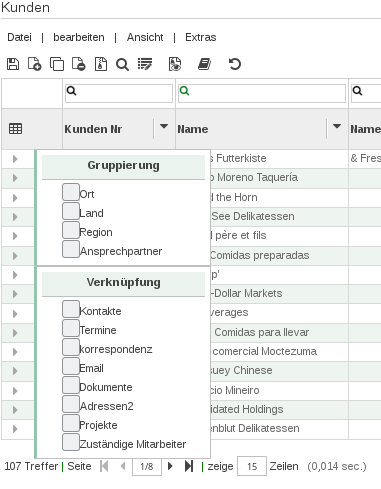
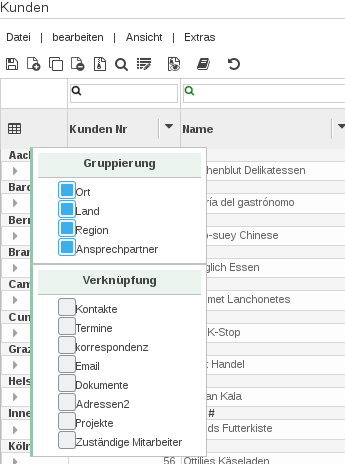
Fig.1: Selection window groups
Note: The order of the groups in the drop down menu depends on the position of the column in the Record List. If the column ‘City’ is displayed before the ‘Country’, it will appear before the ‘Country’ in the drop down menu.
What changes in the Record List
Record List - no group selected
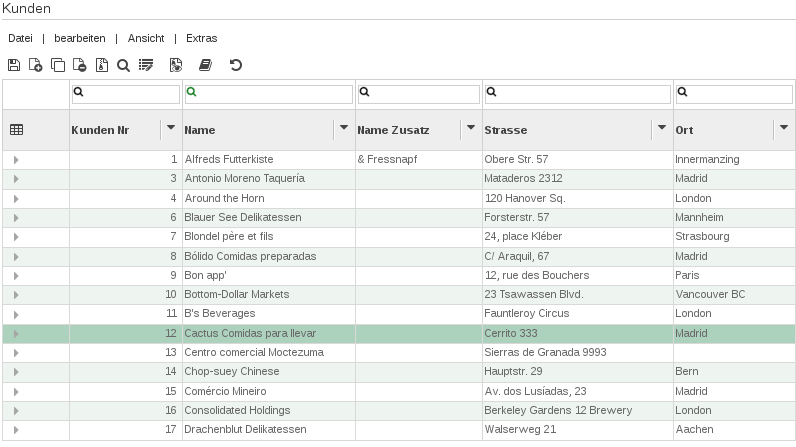
Fig.2: No groups
Record View - Group ‘Country‘ selected
‘Country’ is displayed as group header. The corresponding data records are listed below.
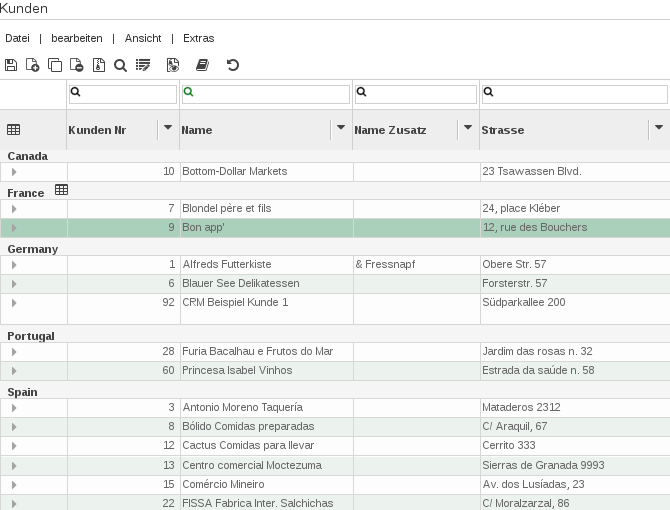
Fig.3: Group by country
Record List – Group ‘Country’ and ‘Region’ selected
‘Country’ and ‘Region’ are displayed as group headers. Example US with 3 regions. (CA, NM, OR). In case there is no ‘Region’ available the ‘#’-symbol is displayed. Example Germany (data record, field region has no value).
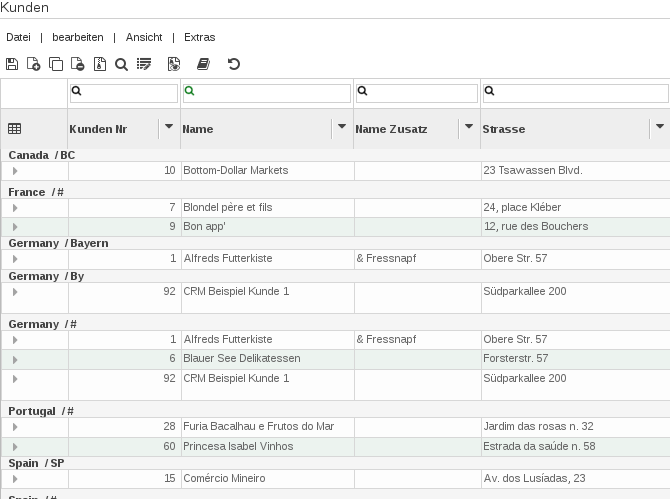
Fig.4: Group by country and region
How to reset a Group selection
Choose the ‘Group Select‘ icon and uncheck the selected checkboxes.